
Microsoft Copilot Wave 3: What Small Businesses Need to Know
Microsoft Copilot Wave 3 adds AI agents and Work IQ to Microsoft 365. Here's what to set up, and what to lock down, before it reaches your team.

· Last updated
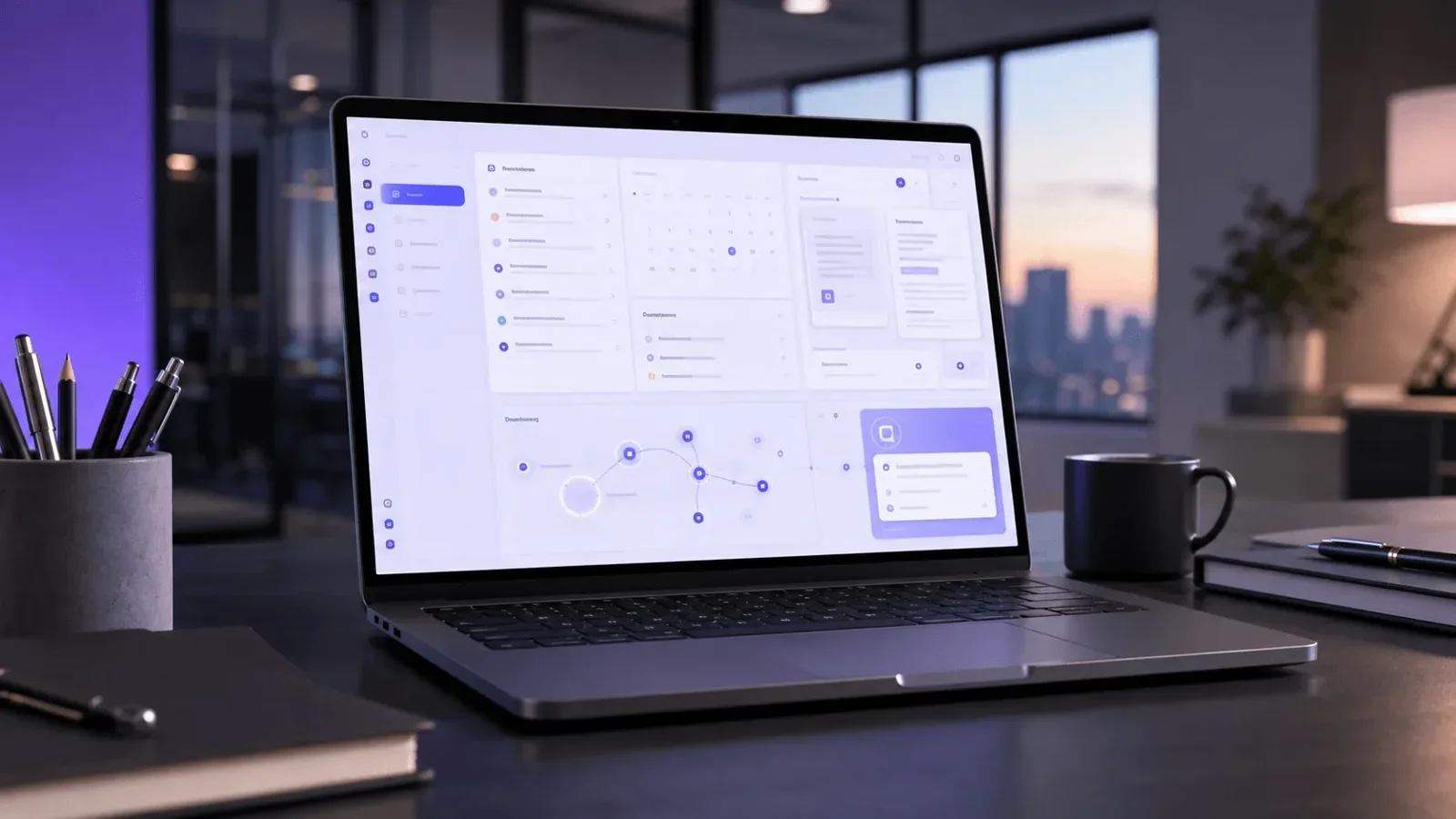
Microsoft Copilot Wave 3 shifts AI from a writing assistant to a workflow participant inside Microsoft 365. The update introduces custom AI agents that can handle repetitive tasks without constant input, improved business context through Work IQ, and direct document editing from a conversation. For small businesses in Northeast Ohio, the key question is not what Copilot can do but how to set it up so it works safely and consistently.
Key Takeaways
- Microsoft Copilot Wave 3 moves AI beyond writing assistance to active workflow participation. You can now build custom AI agents inside Microsoft 365 that handle specific tasks without constant human input.
- Work IQ is a new layer that helps Copilot understand your business context: your data, communication patterns, and internal content. Responses become more tailored to your specific organization rather than generic.
- The “Copilot coworker” feature, currently in testing, lets AI agents carry out longer multi-step processes without being prompted for each step. This is powerful and requires careful permission setup before deployment.
- Microsoft is building governance tools into Wave 3 to give administrators visibility into what agents are doing and how they are being used. This is the right move, but it only helps if someone is paying attention to it.
- Most small businesses already have access to Copilot through their Microsoft 365 plan. The question is not whether to use it but how to configure it so it works safely and predictably for your team.
What Has Changed Since Earlier Copilot Versions
If you use Microsoft 365, you have probably noticed that Copilot has not stood still. It started as a writing tool that could draft emails and summarize documents. Then it expanded into Teams, showing up in meeting recaps and chat summaries. Then it moved deeper into Word, Excel, and Outlook. Each version did more than the last.
Microsoft groups these updates into “waves,” which is how they bundle significant changes rather than rolling out individual features over time. Wave 1 was about helping individuals with tasks: drafting, summarizing, creating. Wave 2 added deeper integration into specific Microsoft 365 apps. Wave 3 is a shift in the underlying model.
The change in Wave 3 is not about adding more features to existing workflows. It is about changing what Copilot is. Earlier versions helped you with tasks. Wave 3 starts giving Copilot the ability to participate in workflows on its own, carrying out actions rather than just assisting with them.
Additionally, Wave 3 expands what AI models Copilot can access under the hood. Microsoft is integrating AI capabilities from multiple providers, which means the system becomes more capable over time without requiring you to do anything differently. You do not need to worry about the technical model behind it. But it does mean Copilot will continue evolving even after Wave 3 ships.
For small and mid-sized businesses in North Canton, Canton, Akron, and across Northeast Ohio, the practical question is: what does this actually mean for how your team works day-to-day? And what do you need to set up before your employees start using the new capabilities?
Why the Wave Model Matters
Microsoft releases Copilot updates in waves to manage the pace of change. Wave 3 does not arrive all at once. Features roll out to different Microsoft 365 tenants over weeks. However, it is worth knowing what is coming before it appears in your environment so you can configure it intentionally rather than reactively.
Custom AI Agents: What They Are and What They Can Do
The most significant change in Wave 3 is the ability to create custom AI agents inside Microsoft 365. An agent is a small, task-focused AI program that you define. You specify what it should do, what information it has access to, and what rules it follows. Once configured, it can carry out that task repeatedly without needing someone to prompt it each time.
In practical terms, an agent could handle the first steps of sorting incoming emails into categories. Or it could monitor a shared document for changes and send a summary to a distribution list. Or it could manage a simple internal approval workflow, moving a request from one stage to the next based on predefined rules.
These are things that previously required a human to do manually or required dedicated automation software. Inside Microsoft 365, with the right configuration, a Copilot agent can handle them within the tools your team already uses.
There is also a feature currently in testing called “Copilot coworker.” This takes agents further by allowing them to carry out multi-step processes that run over time. Instead of asking Copilot to help with one task, you could assign a more complex workflow, like reviewing a set of documents, identifying items that need follow-up, drafting the follow-up messages, and routing them to the right people. The agent handles the sequence without you managing each step.
This is genuinely useful for teams that spend a lot of time on repetitive admin processes. But it also requires careful setup. An agent that has been given broad access and unclear instructions can create problems, send messages to the wrong people, move files in ways that create confusion, or misinterpret a rule and take an incorrect action. The more capable the agent, the more important the configuration is.
Before You Build an Agent
Define what the agent should access before you turn it on. Agents inherit permissions. If the user account that creates an agent has access to sensitive files, the agent may have that access too. Scope the agent’s permissions carefully. Less access is better until you have tested the agent’s behavior.
Work IQ and Context-Aware Responses
One of the things that has made earlier Copilot responses feel generic is that the AI does not know much about your specific organization. It knows about Microsoft 365 broadly, and it can read the document or email you are working on. But it does not know your industry, your client relationships, your internal terminology, or the specific ways your team communicates.
Work IQ is Microsoft’s answer to that problem. It is a new layer that allows Copilot to build understanding of your organization over time by drawing on your business’s data, communication patterns, and internal content.
In practice, that means a Copilot response about a client project should eventually feel more relevant to your specific business rather than a generic answer about project management. When you ask Copilot to summarize a recent discussion, it should understand who the key people are in your organization and what the context of that discussion was.
That is a meaningful capability improvement. But it also raises a question that every business should answer before deploying it: what information should Copilot be allowed to access?
Work IQ draws on data within your Microsoft 365 tenant. That means if confidential documents, sensitive client information, or HR records are accessible to Copilot’s data processing, they can influence responses. Responses could surface information that was not intended for the person asking the question.
This is not a reason to avoid Work IQ. But it is a reason to review your data permissions before enabling it. Files and folders should be shared appropriately within your organization, not just technically accessible to anyone. That kind of permissions hygiene is something managed IT supports should help you get right before the new capabilities arrive.
Permissions First
Before Work IQ builds context from your organization’s data, review whether your SharePoint, Teams, and OneDrive permissions reflect how information should actually be shared. Overly permissive access settings become a larger issue when an AI is actively using that data to inform responses.
The Controls Microsoft Is Adding for Business Oversight
Microsoft recognized early that as Copilot became more capable, businesses would need more visibility into what it was doing. Wave 3 includes a set of governance tools specifically designed to give IT administrators and business owners that visibility.
These tools cover several areas. Administrators can see what agents are active in the environment, what data they are accessing, how frequently they are running, and whether their actions are producing the expected outcomes. This is the kind of oversight that was harder to achieve in earlier versions where Copilot operated more as an individual-user assistant.
There are also controls for managing which users can create agents and what capabilities agents can be given. This matters for businesses where you want to allow experimentation with Copilot without giving every employee the ability to build an agent that accesses sensitive business data or sends external communications automatically.
However, these controls only help if someone is actively reviewing them. The dashboard and logs exist in the Microsoft 365 admin center. But a business that has not set up a review process for that admin center will not notice when an agent behaves unexpectedly. The tool provides the visibility. The decision to use that visibility belongs to the business or its IT provider.
For small businesses across Northeast Ohio that do not have a dedicated IT person reviewing admin settings regularly, this is a reason to make sure your managed IT provider is doing that review. The governance tools are only as good as the attention paid to them.
Before You Deploy Copilot Agents in Your Business
- Review which users have permission to create Copilot agents in your Microsoft 365 admin center. Start with a limited group rather than everyone.
- Audit your SharePoint, Teams, and OneDrive permissions before enabling Work IQ. Make sure sensitive data is not more broadly accessible than intended.
- Define what each agent should be allowed to access, not just what it needs to do. Scope access carefully.
- Test each agent in a controlled setting before it handles real business communications or workflows.
- Set a review schedule for admin center logs so someone is checking agent activity regularly, not just when something goes wrong.
- Brief your team on what agents are running in your environment. Employees who receive communications from an agent should know that is what they are receiving.
What Northeast Ohio Businesses Should Do With Wave 3
Most businesses in North Canton, Canton, Akron, and across Stark County already have access to Copilot through their Microsoft 365 subscription. The question is not whether to have access. The question is how to use it in a way that adds value without creating new problems.
The best starting point for most small businesses is one well-defined use case. Pick one repetitive process that your team does regularly, something like drafting meeting summaries, sorting incoming email categories, or routing a specific type of internal request. Configure an agent for that one thing. Test it. Adjust it. Get comfortable with how it behaves before expanding.
That measured approach produces better outcomes than turning everything on at once and figuring out the problems after they appear. It also gives your team time to build confidence with the tool rather than inheriting a complex system they did not design.
Permissions and data access reviews should happen before any agent is turned on. This is not a technically complex step, but it takes time to do properly. If your Microsoft 365 environment was set up years ago and permissions have accumulated without regular review, there may be broader access than anyone remembers. A managed IT provider can run that audit efficiently.
Cyber Shift Technologies has served 235+ businesses since 2016. We help clients configure Microsoft 365 environments for how their teams actually work, including getting Copilot set up in a way that produces useful results without creating oversight gaps. Support and SOC monitoring run 24/7/365.
Wave 3 is a meaningful step forward for what Copilot can do inside Microsoft 365. But the benefit only materializes for businesses that take the time to configure it correctly. If you want help thinking through where to start, we are a phone call away.
Set Up Copilot Wave 3 the Right Way for Your Team
Our team can review your current Microsoft 365 setup, check your permissions before Work IQ goes live, and help you configure your first Copilot agent for a specific workflow. It is a practical conversation for any North Canton or Northeast Ohio business that wants to use these tools without creating new problems.
Call: 330-353-8420
Email: info@cybershift.com
Web: cybershifttech.com/contact
No pressure. No jargon. Just a straight conversation about where you stand and what, if anything, needs to change.
Frequently Asked Questions
What is new in Microsoft Copilot Wave 3?
Wave 3 introduces custom AI agents inside Microsoft 365, a new context layer called Work IQ that helps Copilot understand your organization’s data and communication patterns, and improved governance tools for administrators. It also previews “Copilot coworker,” which can carry out multi-step processes without prompting. The shift is from AI as assistant to AI as workflow participant.
What is a Copilot agent and how is it different from regular Copilot?
A regular Copilot interaction responds to a prompt: you ask it to draft an email or summarize a document and it does. An agent is configured once and then runs on its own. You define what it monitors, what it accesses, and what actions it takes. Once deployed, it handles that task repeatedly without requiring a prompt each time.
What is Work IQ and what does it change?
Work IQ is a new layer that lets Copilot build understanding of your specific organization from your Microsoft 365 data: your files, communication patterns, and internal content. This makes responses more relevant to your actual business rather than generic. However, it requires a permissions review before enabling, since Copilot will draw on whatever data is accessible in your tenant.
Do I need to do anything before Copilot Wave 3 reaches my account?
Yes. Review your SharePoint, Teams, and OneDrive permissions before Work IQ goes live. Confirm which users should have the ability to create Copilot agents. Set up a review process for admin center logs so you can see what agents are doing after they are deployed. Doing this before features arrive is significantly easier than reviewing it after something unexpected happens.
Is Copilot available to small businesses on standard Microsoft 365 plans?
Microsoft Copilot for Microsoft 365 is available as an add-on to most commercial Microsoft 365 plans. Availability and pricing vary by plan tier. If you are not sure whether your current plan includes Copilot access, a quick review of your Microsoft 365 admin center or a conversation with your IT provider will tell you exactly what you have and what an upgrade would cost.
How can Cyber Shift Technologies help my Northeast Ohio business get Copilot configured correctly?
We’ve served 235+ businesses since 2016. We can review your Microsoft 365 permissions, configure Copilot for your specific workflows, and set up agent governance so you have visibility into what is running. Call 330-353-8420 to talk through where to start.